Students’ reports and/or posters
In addition to the source code that the students develop, you can also require that they produce a report and a poster. Both are are optional.
See the report page and the poster page. The demo site shows the default case of these each being an additional webpage (route) within each student’s buggy editor.
The config settings that control the report are in the “Project” group of config settings: see configuring the project.
Report and poster are both optional
You don’t need to require your students to submit either a report or a poster at the end of the project. You can also choose to combine them into a single document or webpage (with the poster being either at the top or bottom of the report).
The race sever does not handle submission of this coursework: submission.
Standalone document, or page within the buggy editor
You may already require students to submit their buggy editor app at the end of the project. You can specify that the report or poster (or both) must be presented as a page within the buggy editor. Alternatively, you can choose for either of them to be standalone documents.
If you choose them to be presented as pages in the editor, students must add a route (and template) for /report and /poster respectively (or just /report if the poster is included in it. The instructions for doing this are presented on the race server depending on the settings for PROJECT_REPORT_TYPE and PROJECT_POSTER_TYPE.
If you prefer your students to produce documents for either of these, you’ll need to provide information about how you want this done. You can provide a link to custom URLs (perhaps to a page on your Learning Managenent System if your institution uses one).
Using task texts
If you enable task texts — and we recommend that you do, if you require a report — then students can save notes on how they tackled each task as they do them.
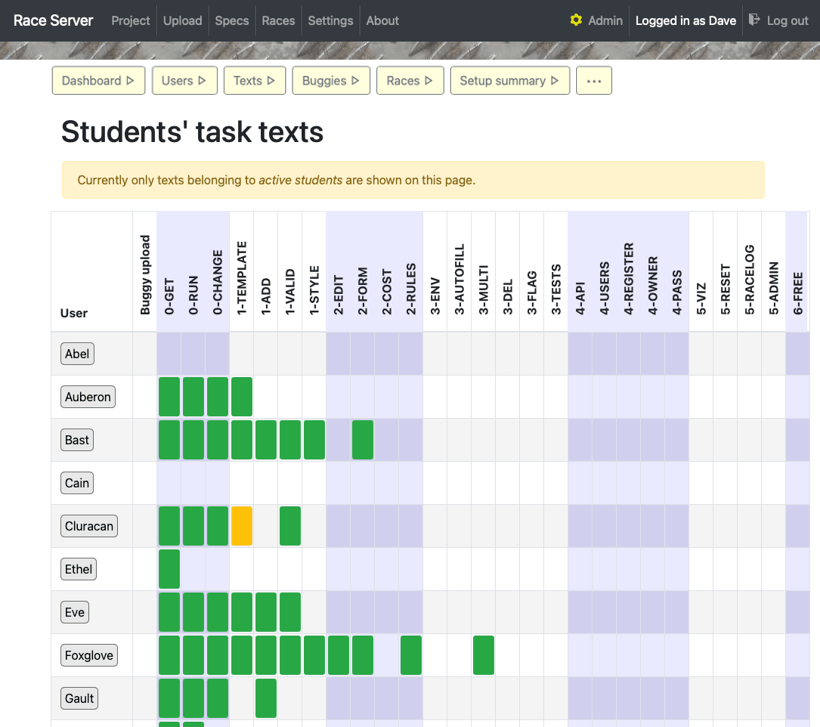
The task text “matrix” shows students’ notes, which is handy for keeping an eye on progress: see more about task texts.
The server provides buttons so a logged-in student can download their accumulated task texts as a single file suitable for dropping into the report.html template (if they are adding it to their buggy editor), or to submit (possibly after editing) as a standalone report. This download can also do markdown to HTML conversion.
The convenience to students of saving task texts as-you-go, and then generating the report from that effectively automatically, is the incentive for students to use this mechanism. In turn you get a reasonably good indicator of students’ progress, as you see the texts increasing in both size and quantity over the duration of the project.
Turning task texts into a report
If you require your students to submit a report as a standalone document, and you’re encouraging them to save task texts as they go along, you can help students download the texts in a single document. Specifically, use these Task group config settings:
Set IS_TASK_TEXT_HTML_DOWNLOAD_WHOLE_PAGE to Yes to ensure students get a whole HTML page with doctype, head, and body — otherwise they just get an HTML fragment that’s suitable for inserting into another HTML page.
If you set the HTML download to be a whole page, you can also customise the heading with TASK_TEXTS_HTML_DOWNLOAD_PREAMBLE. There are three placeholders you can use in that string that will be replaced with the suitable value: %USERNAME%, %PRETTY_USERNAME% and %PROJECT_CODE%.